

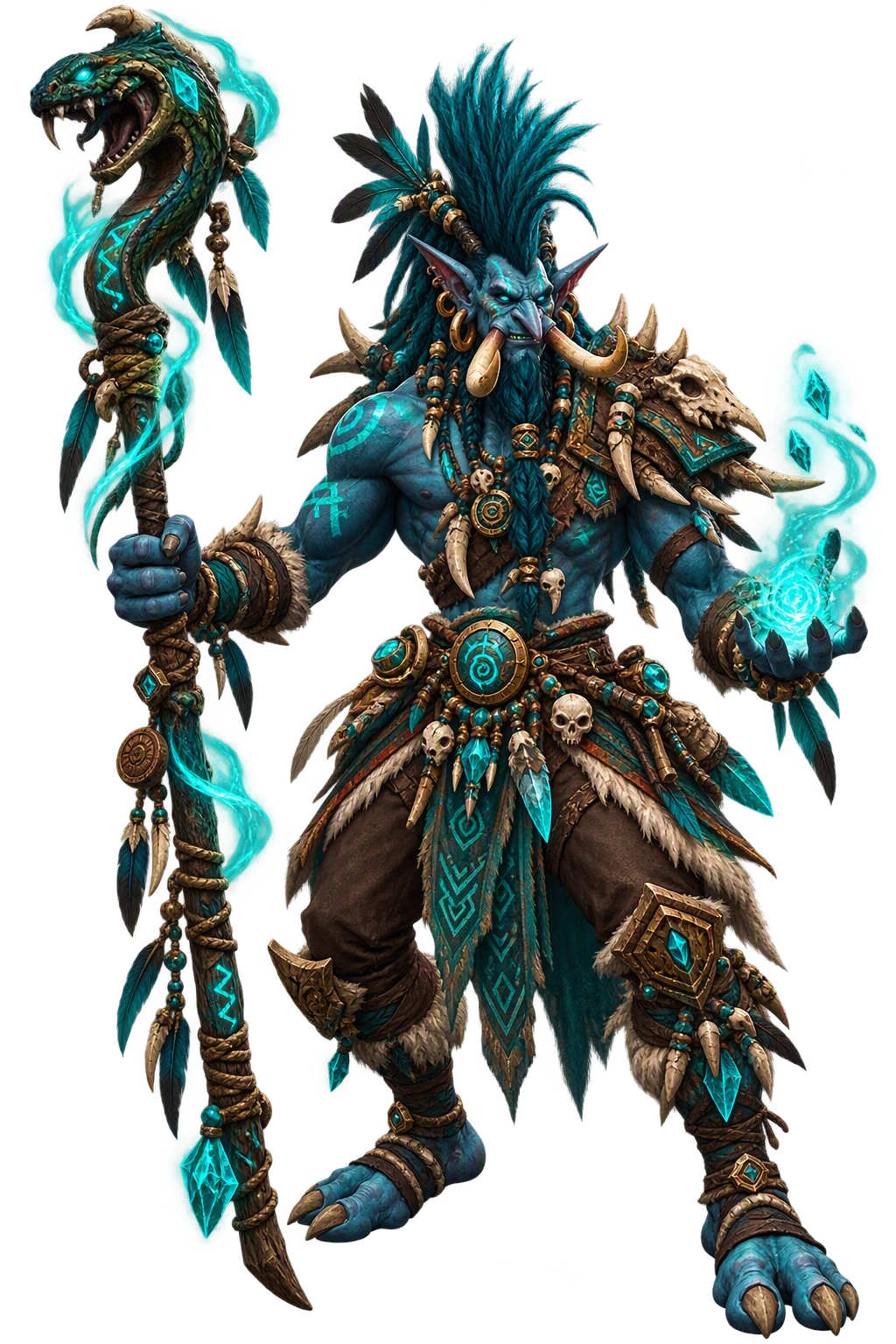
Voodoo Casting Bar adds more information and personal touches to the default cast bars in World of Warcraft Retail. Keep the familiar bars, then choose how their timers, spell names, icons, and colours appear.
Why I Created VCB
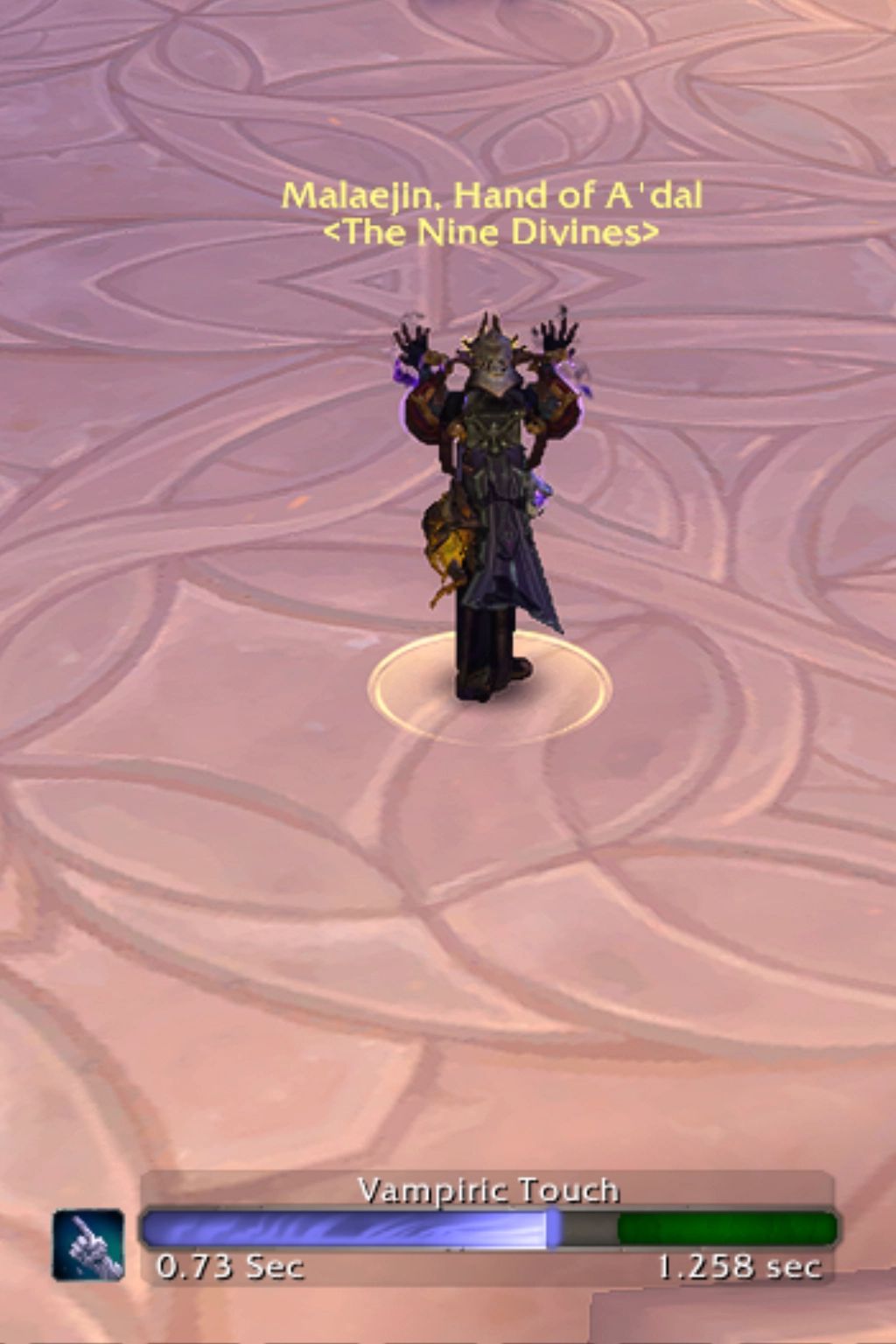 When World of Warcraft Dragonflight (version 10.0.0) was released, the default casting bar was redesigned. I really liked the new look, so I started thinking, “What does the default casting bar actually miss?” The answers were pretty clear:
⚬ The current casting or channeling time.
⚬ The total casting or channeling time.
⚬ The ticks of a channeled spell.
⚬ The spell queue time.
So, I started with those features, but as I was writing the code, more ideas kept coming to mind. Feedback and suggestions from the Discord community also helped shape the addon, so I decided to include some of those ideas as well.
Voodoo Casting Bar is my way of giving those familiar bars a little extra mojo. The idea is simple: keep what already feels comfortable, while making the details work better for the way you play.
Why You May Want This Addon
If you enjoy the default interface but would like more control over your cast bars, Voodoo Casting Bar gives you a focused set of options to explore.
Full Detailed Description
Voodoo Casting Bar (VCB) is my World of Warcraft addon for customizing casting bars and the information they display. It provides controls for the Player, Target, Focus, Boss, and Arena casting bars, with additional features for the Player casting bar, including latency and spell queue indicators, channeling tick markers, and global cooldown displays.
The sections below explain the controls shared by all five casting bar types, followed by the additional options available for specific bars.
Features Shared by All Casting Bars
The following features are available for the Player, Target, Focus, Boss, and Arena casting bars.
🙜 Spell Names 🙞
You can move the spell name around the casting bar and choose whether to show or hide it.
🙜 Casting Timers 🙞
VCB can display the current casting time and the total cast time. You can choose to be shown separately or together. When displayed together, the timers use the following format: current casting time / total cast time. The timers use World of Warcraft’s fonts and can be moved around the casting bar. You can show or hide them and set their precision from zero to three decimal places.
🙜 Spell Icons 🙞
You can display the icon of the spell being cast on the left side of the casting bar, the right side, or both sides. You can also hide the spell icons.
🙜 Text Border 🙞
You can position the text border at the top, or bottom, or both sides of the casting bar, or hide them.
Player Casting Bar
🙜 Resizing and Scaling 🙞
Voodoo Casting Bar lets you resize the Player casting bar. You can also scale it using the scale option in World of Warcraft’s Edit Mode. These controls work together: VCB provides resizing, while Edit Mode provides scaling.
🙜 Appearance and Colors 🙞
You can change the appearance of the Player casting bar’s status bar, and border/background. You can choose different textures for the status bar, and border/background
Also, you choose the color of these elements of the bar. The available color options depend on the part of the bar you are customizing:
⚬ border/background: default, class, or faction color.
⚬ status bar: default, class, faction, or spell school color.
🙜 Lag Bar: Latency for Casting and Channeling 🙞
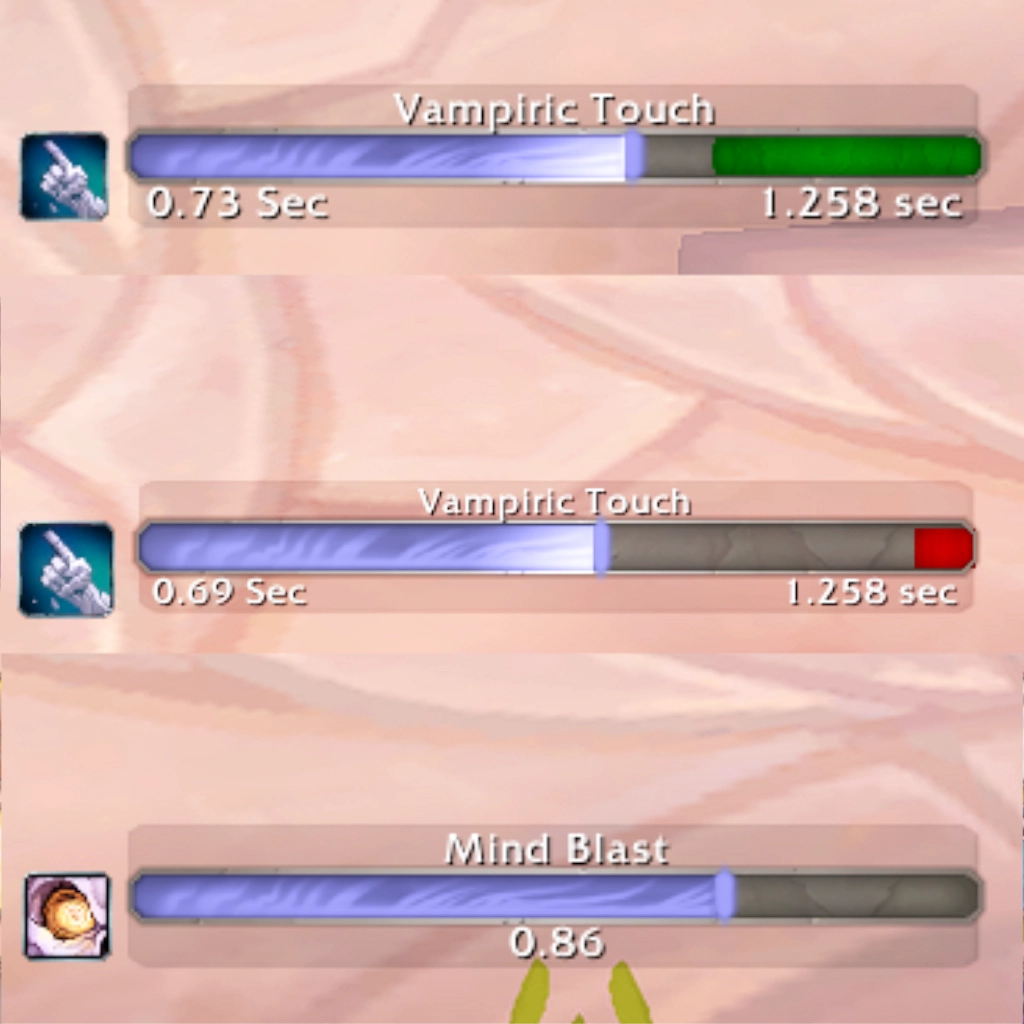 The Lag Bar is a red segment of the Player casting bar that represents latency when casting or channeling a spell. It provides a visual indication of that latency alongside the spell’s progress. You can choose whether to show or hide the Lag Bar.
🙜 Queue Bar: The Spell Queue Window 🙞
The Queue Bar is a green segment of the Player casting bar that represents the spell queue window—the window in which you can queue your next spell. You can choose whether to show or hide the Queue Bar.
The Queue Bar and Lag Bar show different information: the Queue Bar represents the opportunity to queue another spell, while the Lag Bar represents latency.
🙜 Channeling Ticks 🙞
VCB can display tick markers for supported channeling spells on the Player casting bar. These markers identify the spell’s individual ticks, providing information separate from the current and total casting timers.
While developing the tick markers, I spent almost an entire day creating test characters across all World of Warcraft classes. I tested the relevant spells in-game and used the combat log to count and verify their ticks.
You can show or hide the channeling tick markers. The supported spells are:
⚬ Arcane Missiles.
⚬ Boomstick.
⚬ Crackling Jade Lightning.
⚬ Disintegrate.
⚬ Divine Hymn.
⚬ Drain Life.
⚬ Drain Soul.
⚬ Essence Font.
⚬ Fists of Fury.
⚬ Health Funnel.
⚬ Insanity.
⚬ Mending Bandage.
⚬ Mind Flay.
⚬ Rapid Fire.
⚬ Ray of Frost.
⚬ Shifting Power.
⚬ Soothing Mist.
⚬ Spinning Crane Kick.
⚬ Symbol of Hope.
⚬ Tranquility.
⚬ Void Torrent.
🙜 Global Cooldown Displays 🙞
VCB provides three options for displaying the global cooldown (GCD):
⚬ An icon: a GCD indicator that can be moved around the Player casting bar.
⚬ A simple bar: a GCD bar that can also be positioned around the Player casting bar.
⚬ An Instant Cast Bar: an additional display option for the GCD.
Each of these three displays has its own configuration options and can be shown or hidden.
Target and Focus Casting Bars
The Target and Focus casting bars support all the shared controls described above. VCB also provides an option to make these bars movable. Enabling this option lets you change their size and scale as well, giving you control over their placement, size, and scaling.
Boss and Arena Casting Bars
The Boss and Arena casting bars support the shared controls described above. Their additional movement, resizing, and scaling controls are planned for future development, as outlined below.
Planned Features
Some additions are planned for development, while others remain under consideration.
Planned Additions
⚬ Movement, resizing, and scaling for Boss and Arena casting bars: add controls for changing these bars’ position, size, and scale.
⚬ Custom colors: add custom color choices to the available coloring options.
⚬ A Pet casting bar: add support for the pet’s casting bar.
Ideas Under Consideration
The following additions are being considered but are not confirmed development plans:
⚬ Casting bars for party members.
⚬ A casting bar for the target’s target.
How to Install
There are two ways to install the addon.
With the CurseForge app
⚬ Download the CurseForge application.
⚬ Open the app and select Warcraft Retail.
⚬ Find Voodoo Casting Bar and install it. Make sure that Voodoo Da Wow Core is installed as well.
⚬ Start the game and, at the character-selection screen, open the AddOns menu and make sure that VDW, VCB, and VCB_Options are enabled.
Manual installation
⚬ Download Voodoo Casting Bar directly from its CurseForge page. Then go to the Relations tab and download Voodoo Da Wow Core which is listed under Dependencies. Voodoo Da Wow Core is a library that VCB needs in order to work.
⚬ Extract both downloaded files into: World of Warcraft/_retail_/Interface/AddOns/. The Voodoo Casting Bar file will have a name similar to VCB_number_number_number.zip, while Voodoo Da Wow Core will have a name similar to VDW_number_number_number.zip.
⚬ Start the game and, at the character-selection screen, open the AddOns menu and make sure that VDW, VCB, and VCB_Options are enabled.
How to Configure
Type /vcb or /voodoocastingbar in chat to open the options. You can also use the addon's minimap button (it's a small button with a number on it near the minimap).
Start with the information you want to see, then adjust its appearance and placement. Try your choices with a familiar spell so you can see how the bar reads during play.
The configuration guide is the place for the individual settings, small illustrated examples.
Full Change Log
Here is the Full Change Log. See what changes have been made to VCB.
 Subscripe to Ko-Fi
 Subscripe to Patreon
 Donate through PayPal
 Buy Me a Mojo
 Share it on Bluesky
 Share it on Threads
 Share it on X